
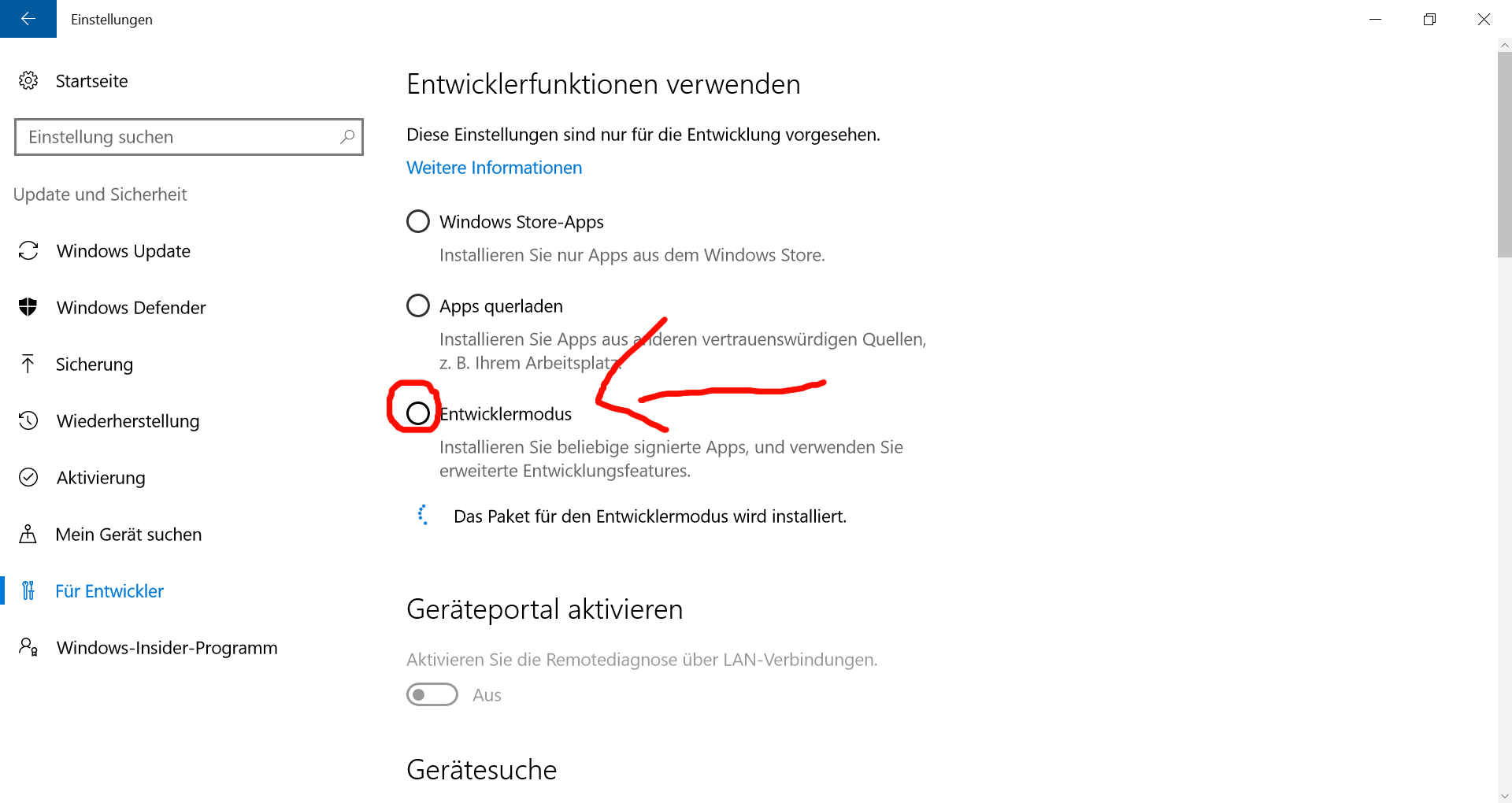
1. Open „Update & Security“ > „For Developers“ > activate the „Developer Mode“.
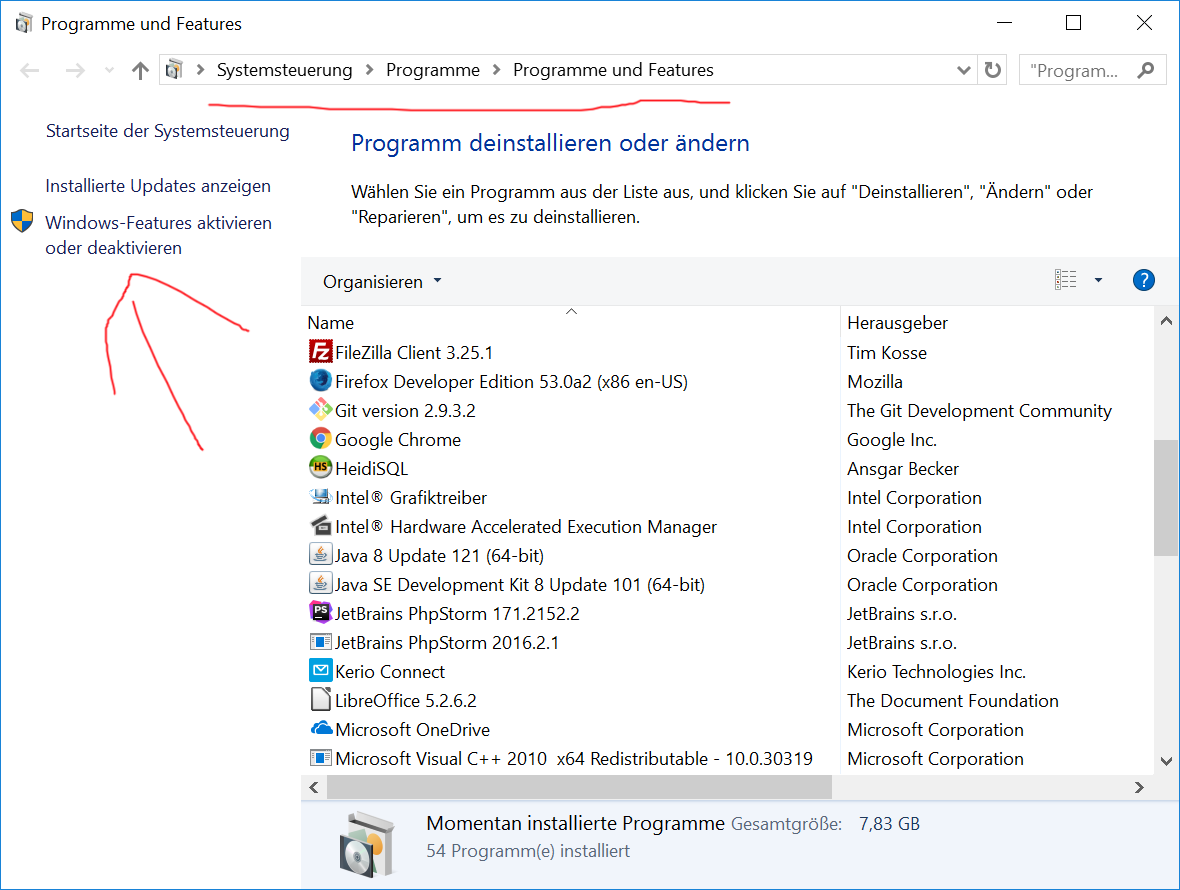
2. Under „Programs“ > „Programs and Features“, click “Turn Windows Features On or Offâ€.
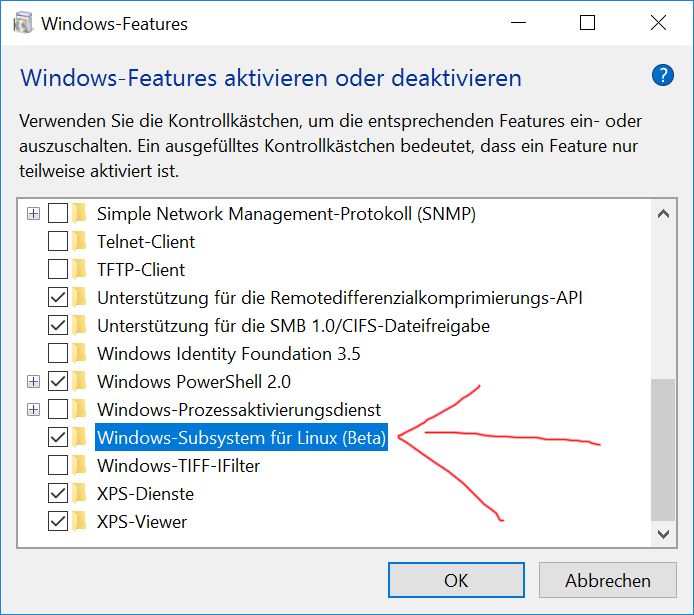
3. Enable the “Windows Subsystem for Linux (Beta)†option in the list and click “OKâ€.
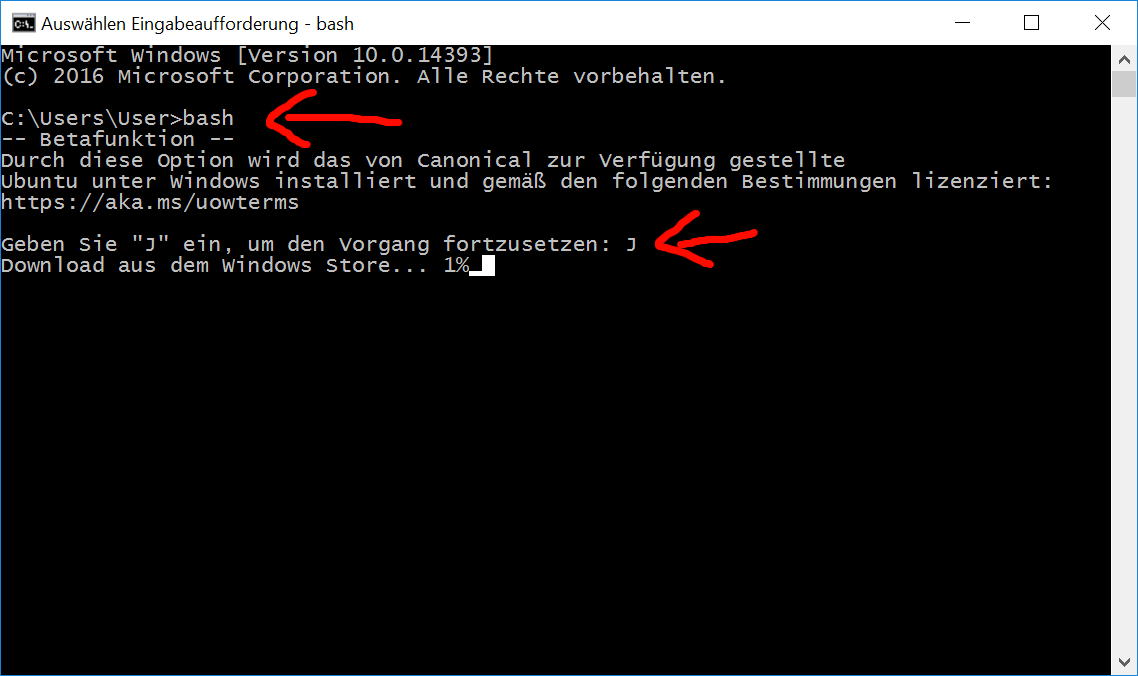
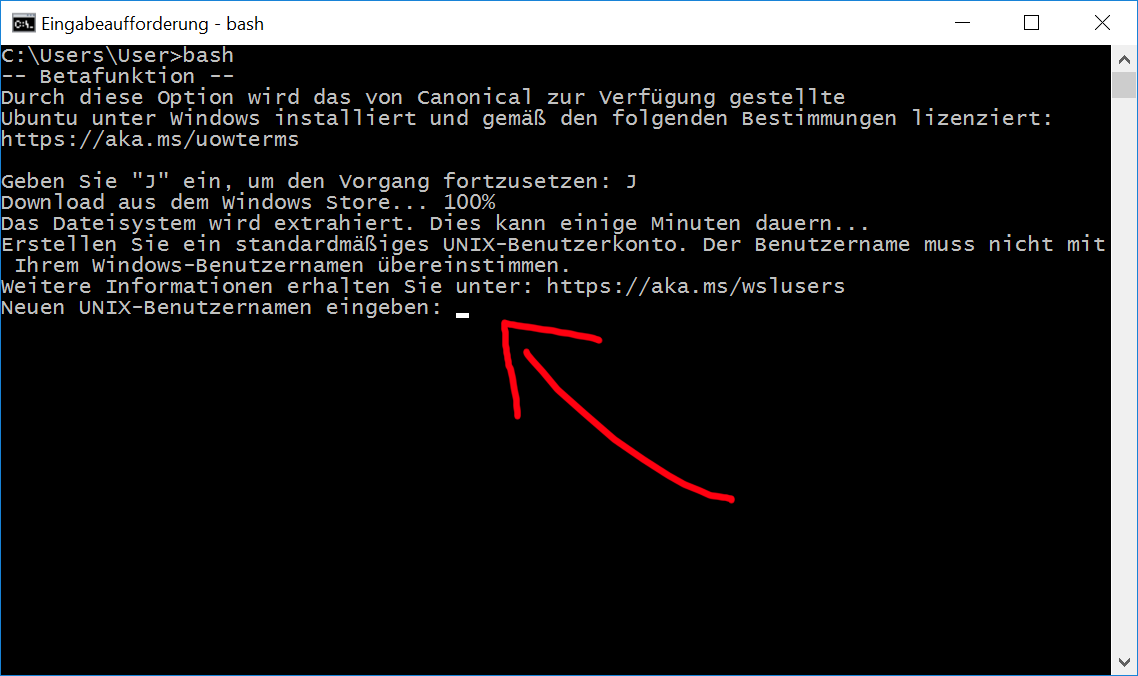
4. After an „reboot“, you open the command line (cmd) and type „bash“ and press [Enter].
5. Enter a „Username“ and a „Password. (you need the password for „sudo“-commands)
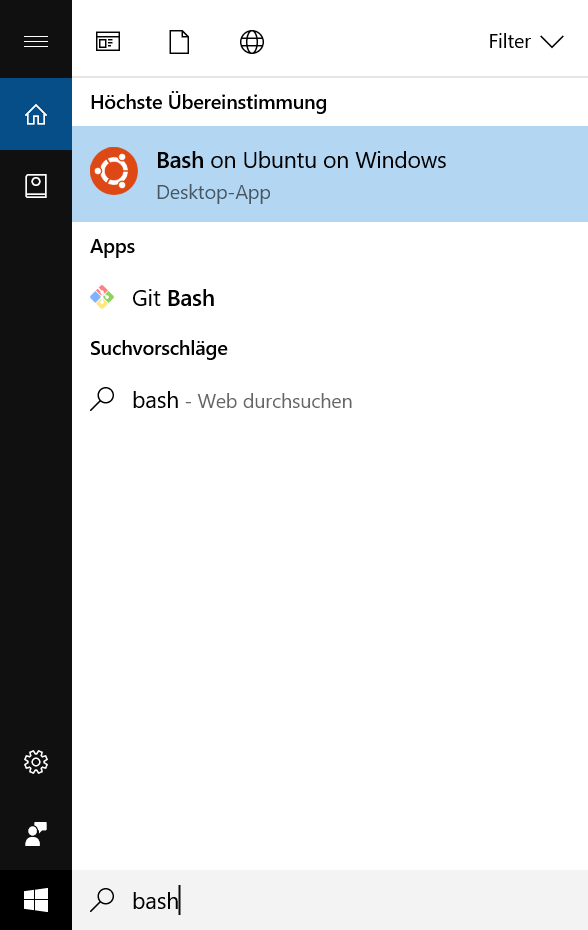
6. Now you can open „Bash on Ubuntu on Windows“.
7. Install „git“ via:
sudo apt-get install git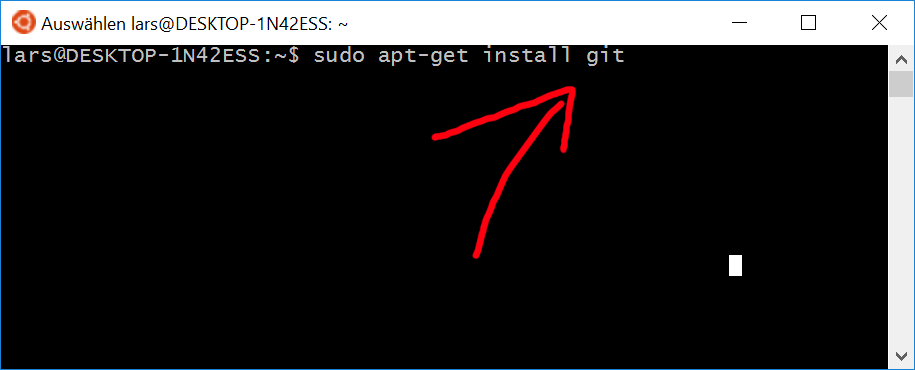
8. Get the „.dotfiles“ via:
cd ~ ; git clone https://github.com/voku/dotfiles.git; cd dotfiles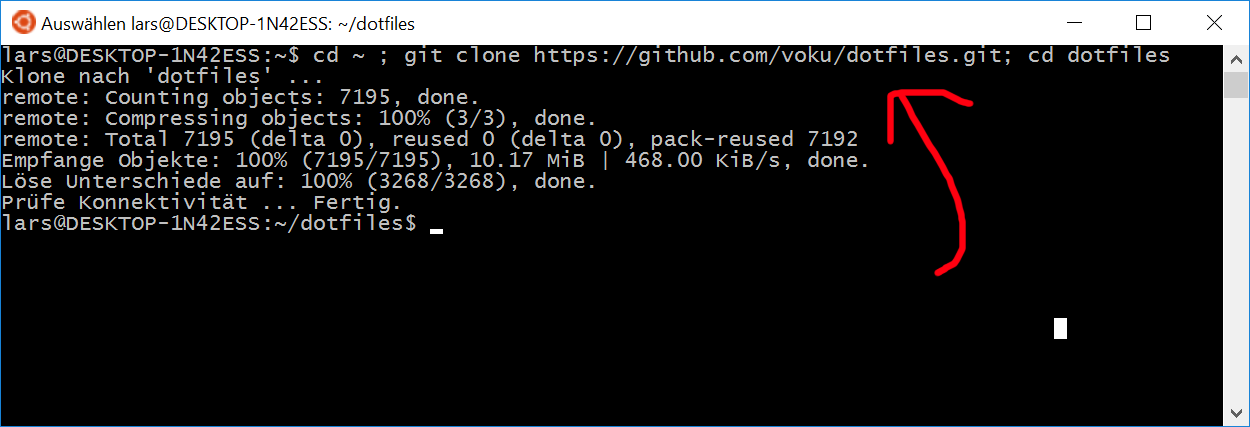
9. Install dependencies via:
./firstInstallDebianBased.sh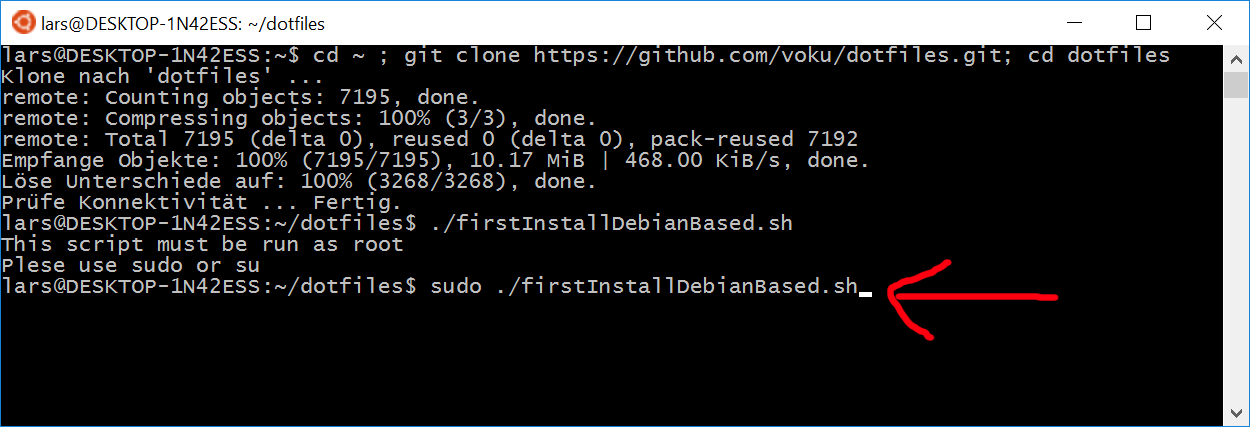
10. Install zsh (optional, but recommended).

11. Use the „.dotfiles“ via:
./bootstrap.sh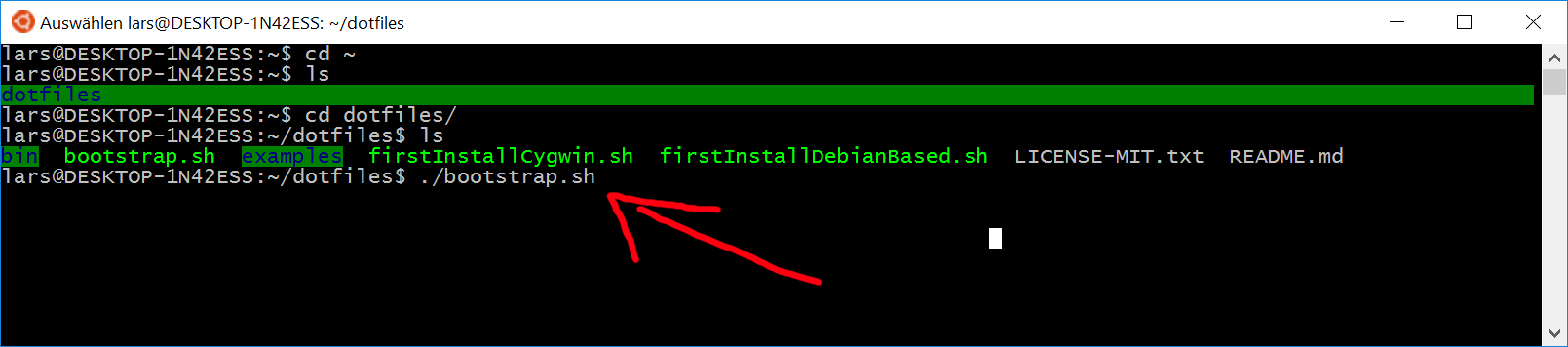
12. Download, install and configure „ConEmu“ …
… a alternative „Command Line GUI“ for Windows. Instead of the default GUI we have UTF-8 support with „ConEmu“, so we can use chars like „✓“.
After you have installed it, we can force „bash“ to „zsh“ in the configuration.
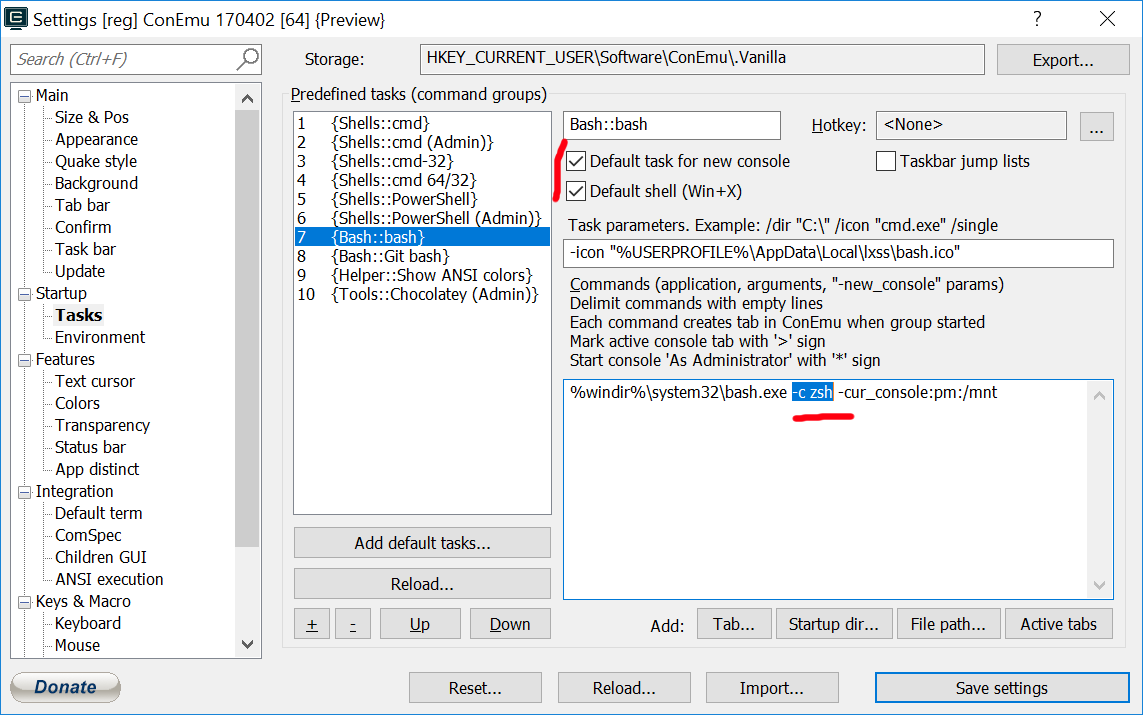
13. Add some „symlinks“ for easier navigation via: e.g.
sudo ln -s /mnt/c /csudo ln -s /mnt/d /d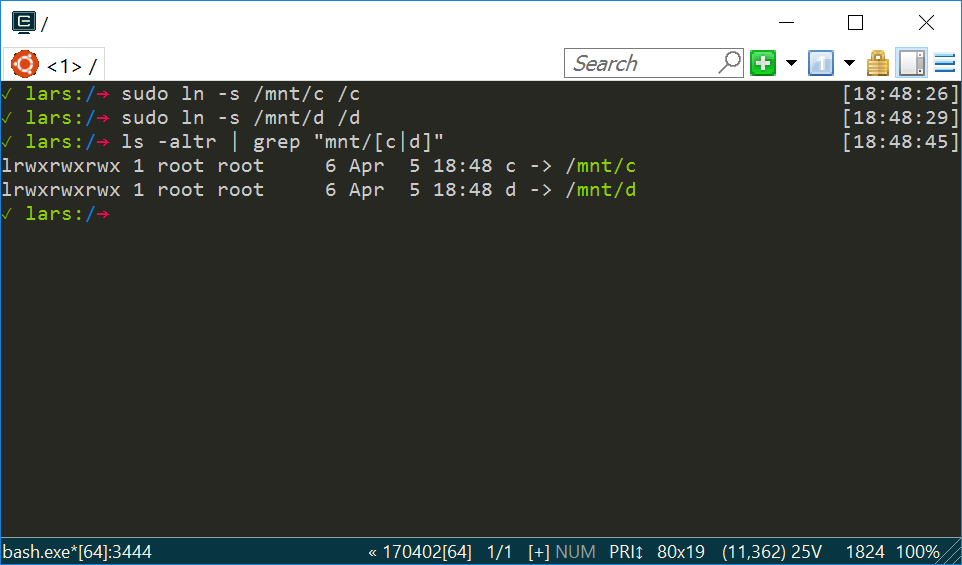
14. Add the current „hostname“ into the „/etc/hosts“-file.
sudo suecho "127.0.0.1 $(hostname)" >> /etc/hostsexitNow you can edit your „.dotfiles“-settings and tweak your configuration.
Here is my example-config:Â https://github.com/voku/dotfiles#add-custom-commands-without-creating-a-new-fork

