
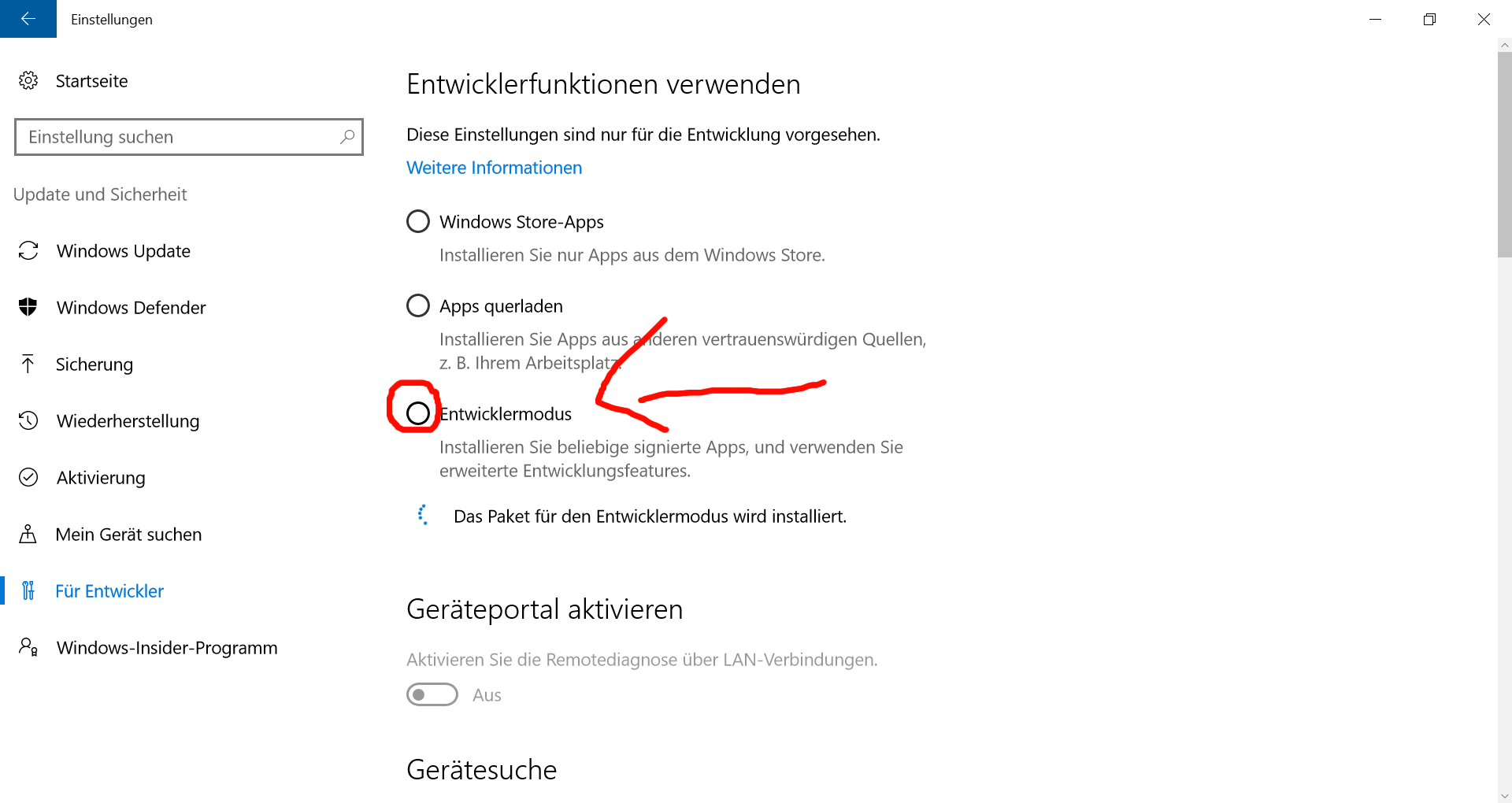
1. Open “Update & Security” > “For Developers” > activate the “Developer Mode”.
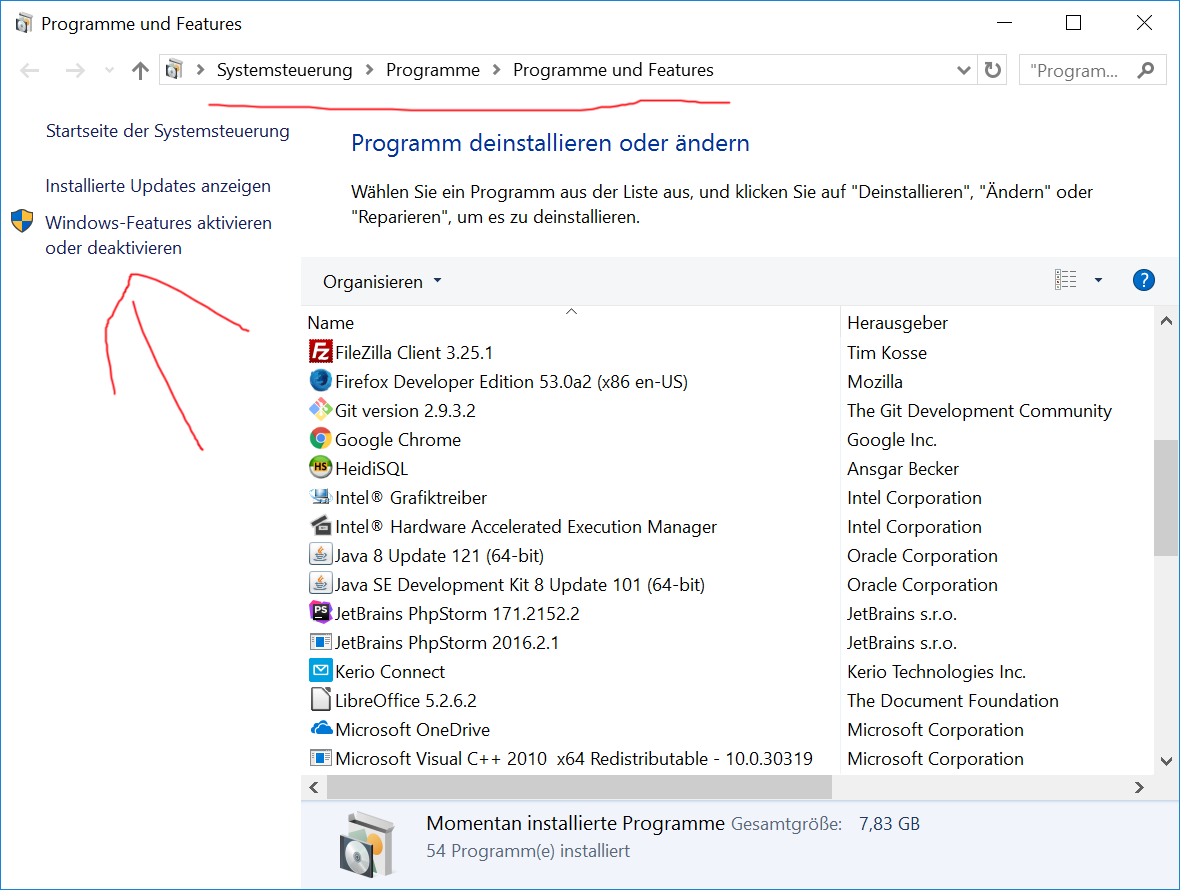
2. Under “Programs” > “Programs and Features”, click “Turn Windows Features On or Offâ€.
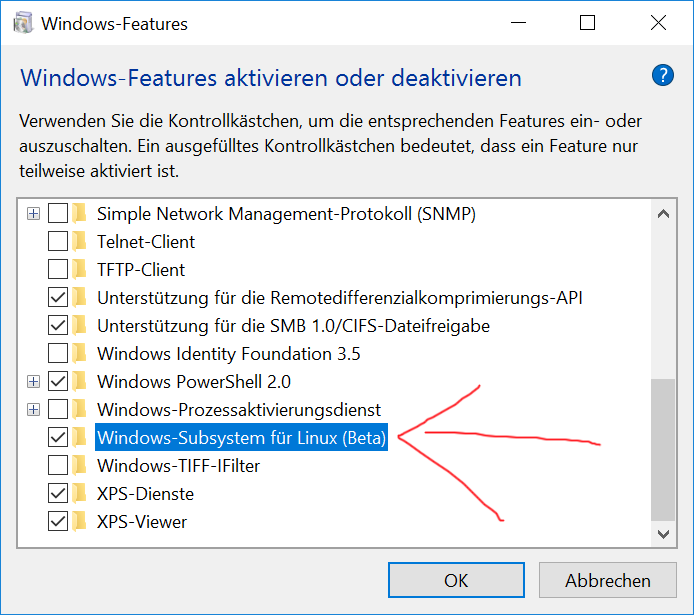
3. Enable the “Windows Subsystem for Linux (Beta)†option in the list and click “OKâ€.
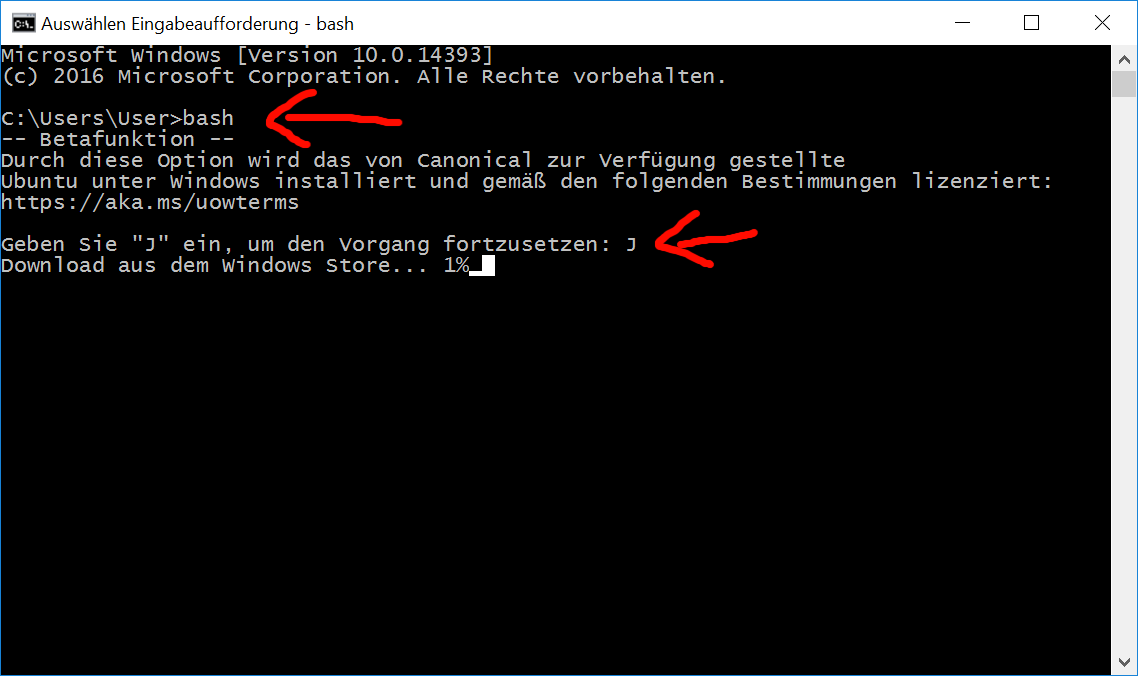
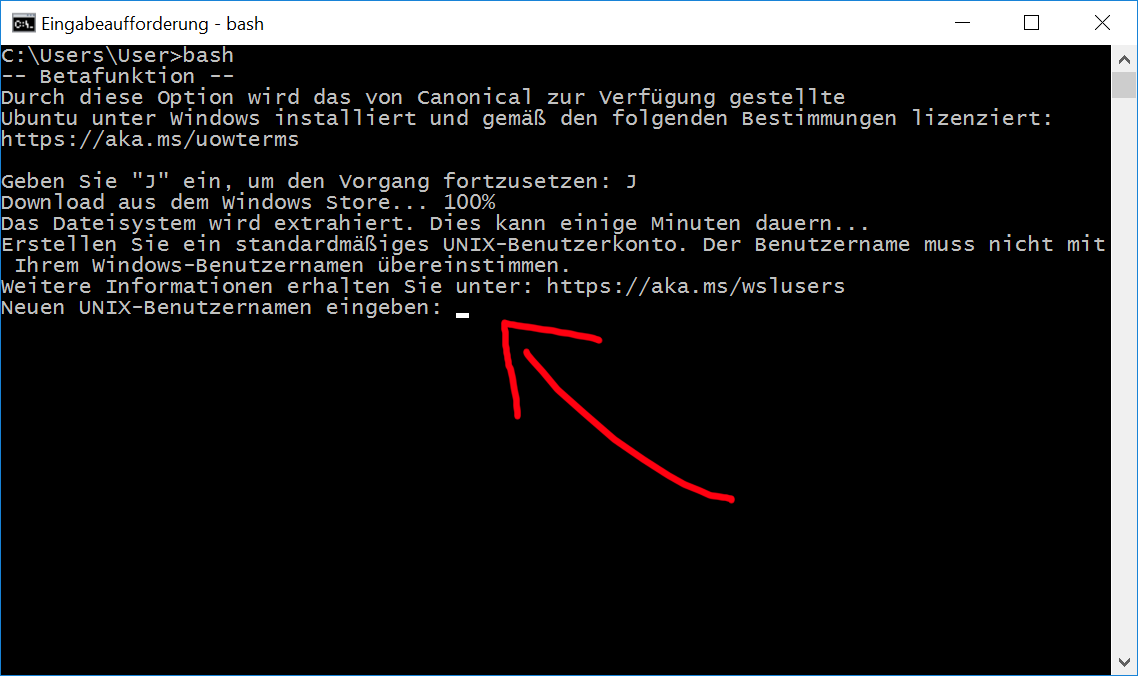
4. After an “reboot”, you open the command line (cmd) and type “bash” and press [Enter].
5. Enter a “Username” and a “Password. (you need the password for “sudo”-commands)
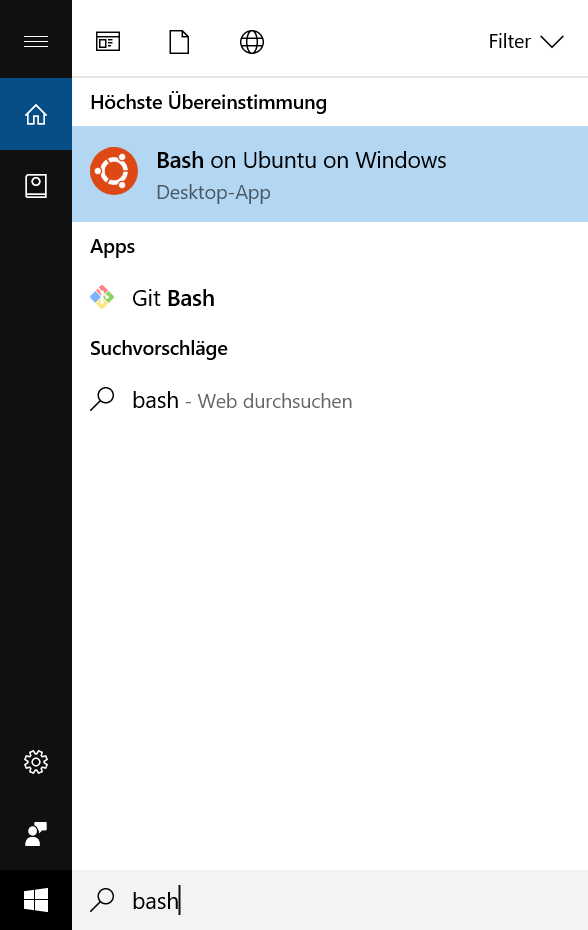
6. Now you can open “Bash on Ubuntu on Windows”.
7. Install “git” via:
sudo apt-get install git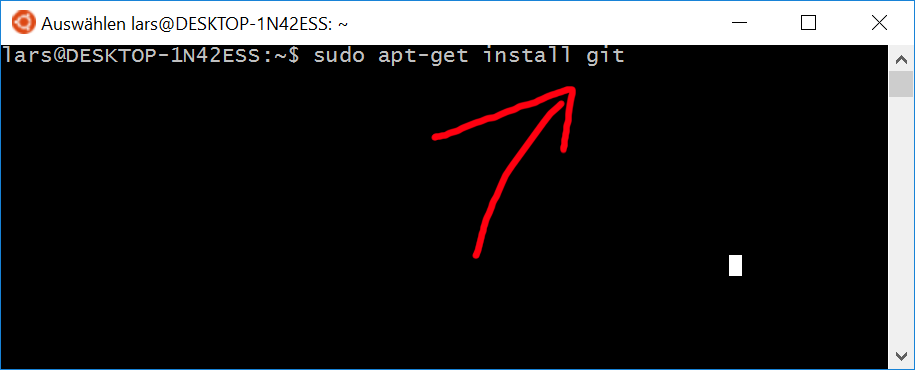
8. Get the “.dotfiles” via:
cd ~ ; git clone https://github.com/voku/dotfiles.git; cd dotfiles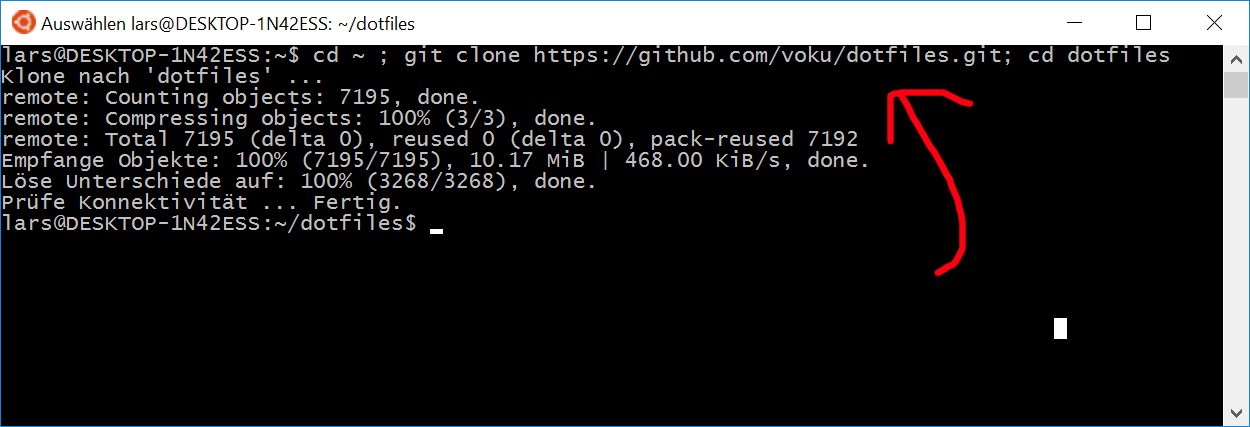
9. Install dependencies via:
./firstInstallDebianBased.sh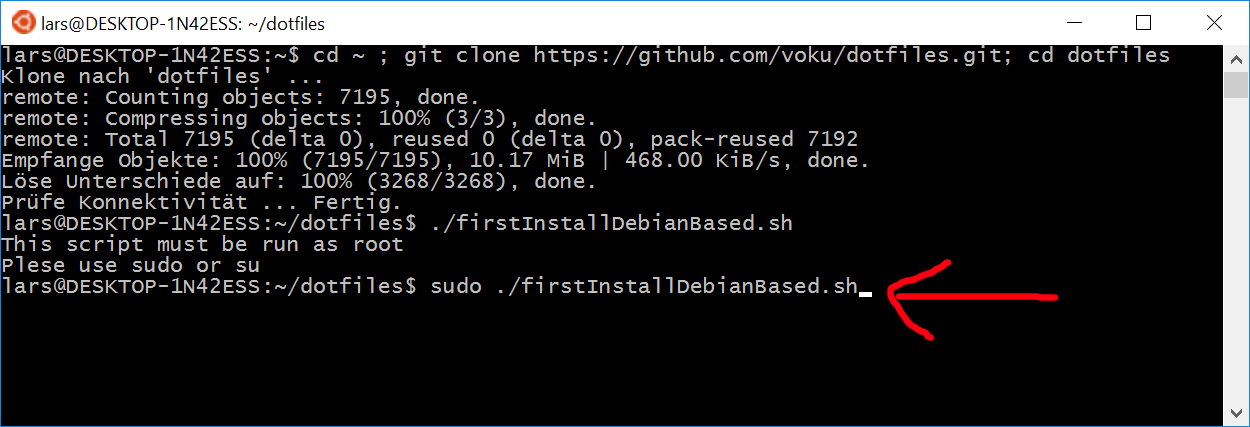
10. Install zsh (optional, but recommended).

11. Use the “.dotfiles” via:
./bootstrap.sh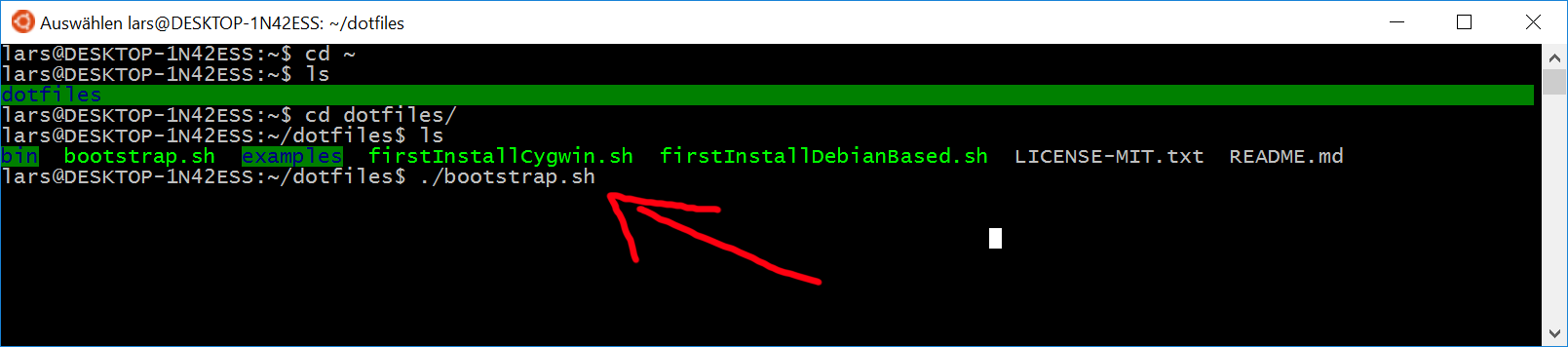
12. Download, install and configure “ConEmu” …
… a alternative “Command Line GUI” for Windows. Instead of the default GUI we have UTF-8 support with “ConEmu”, so we can use chars like “✓”.
After you have installed it, we can force “bash” to “zsh” in the configuration.
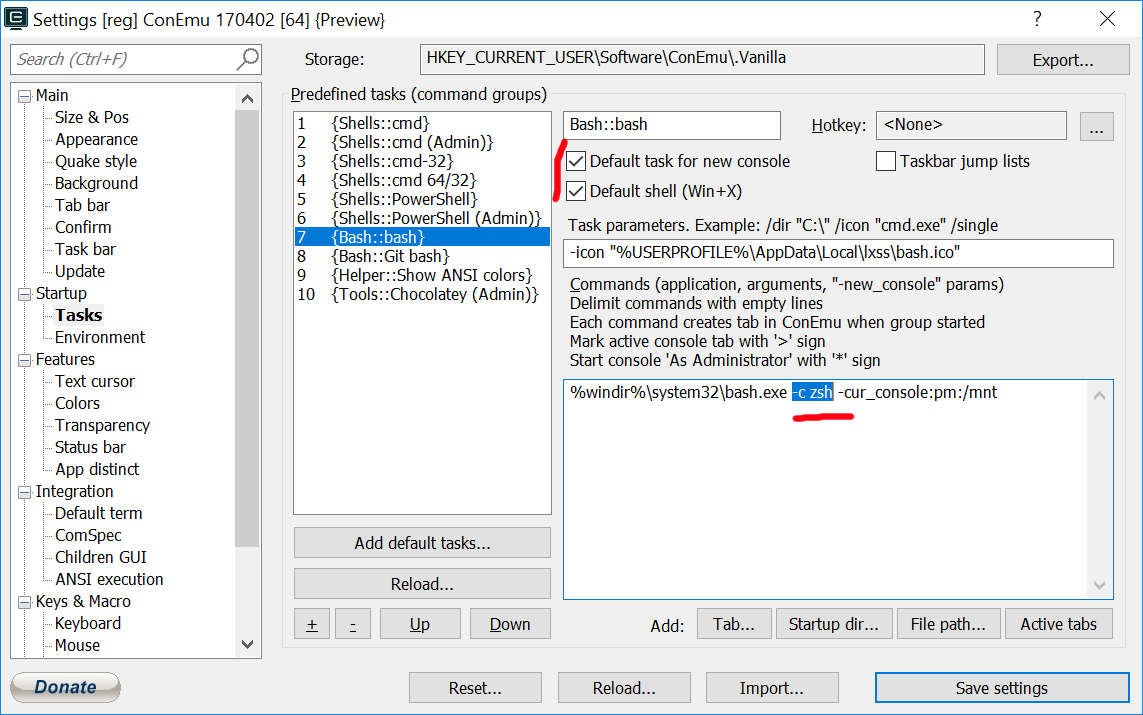
13. Add some “symlinks” for easier navigation via: e.g.
sudo ln -s /mnt/c /csudo ln -s /mnt/d /d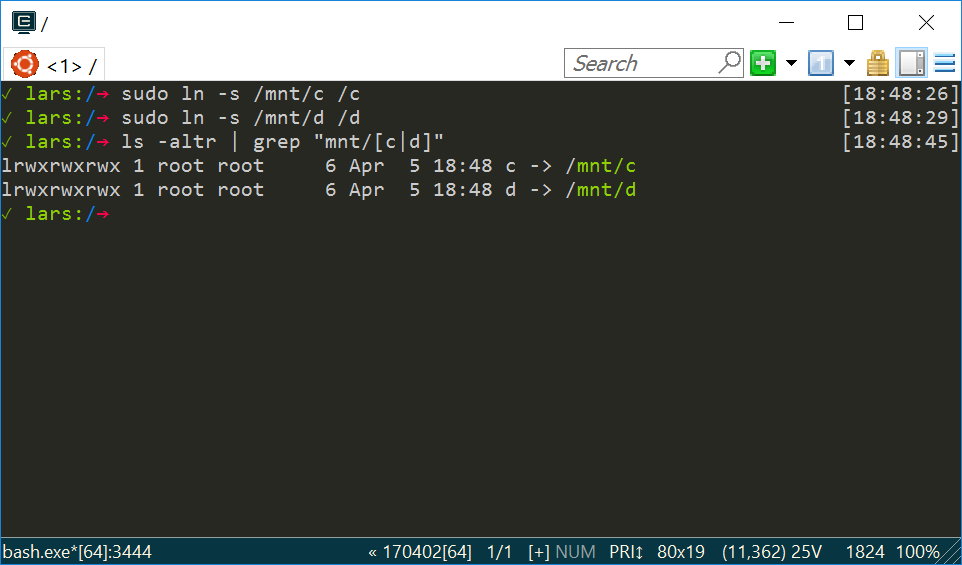
14. Add the current “hostname” into the “/etc/hosts”-file.
sudo suecho "127.0.0.1 $(hostname)" >> /etc/hostsexitNow you can edit your “.dotfiles”-settings and tweak your configuration.
Here is my example-config:Â https://github.com/voku/dotfiles#add-custom-commands-without-creating-a-new-fork

